
Everything you need to know
Prerequisites
An active HubSpot account with Administrator permissions.
Valid Earmarkz credentials (email and password).
Access to HubSpot’s Settings panel.
Connect HubSpot with Earmarz
Extension Installation
In HubSpot, navigate to Marketplace > App Marketplace.
Search for “Earmarkz” and click Install.
When prompted, enter the HubSpot account you wish to connect to Earmarkz and confirm.

Granting Permissions
After selecting your HubSpot account, you’ll see a permissions dialog.
Review the requested scopes (contacts, deals, etc.) and click Grant Access.
Upon approval, HubSpot will redirect you automatically to the Earmarkz login page.
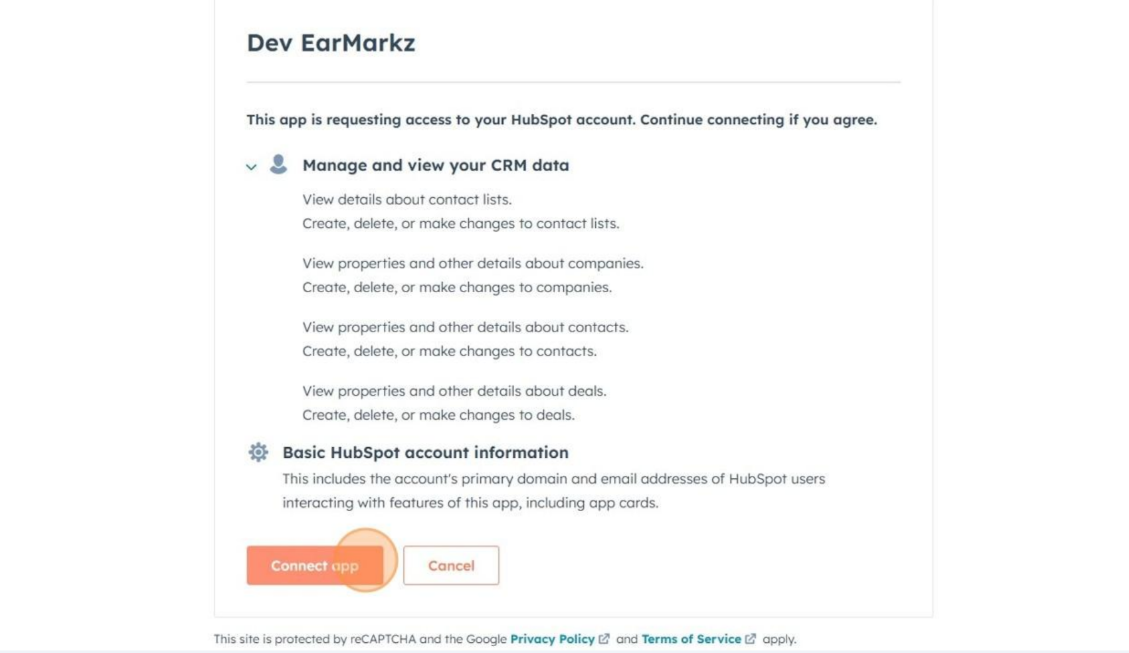
Connecting to Your Earmarkz Account
On the Earmarkz login screen, enter your email and password.
Click Connect Account.
Once the integration completes successfully, you’ll see “Connection successful”.
Adding Earmarkz Cards in HubSpot
To surface Earmarkz data directly within HubSpot records, add the custom cards to your chosen objects (Contacts and/or Deals).
Configure Cards for Contacts or Deals
- In HubSpot, go to Settings .
- Under Data Management, select Objects.
- Click on the object where you want to place the cards
-
- Contacts
- Deals
- Contacts
-
- In the sidebar, choose Record Customization > Default view.
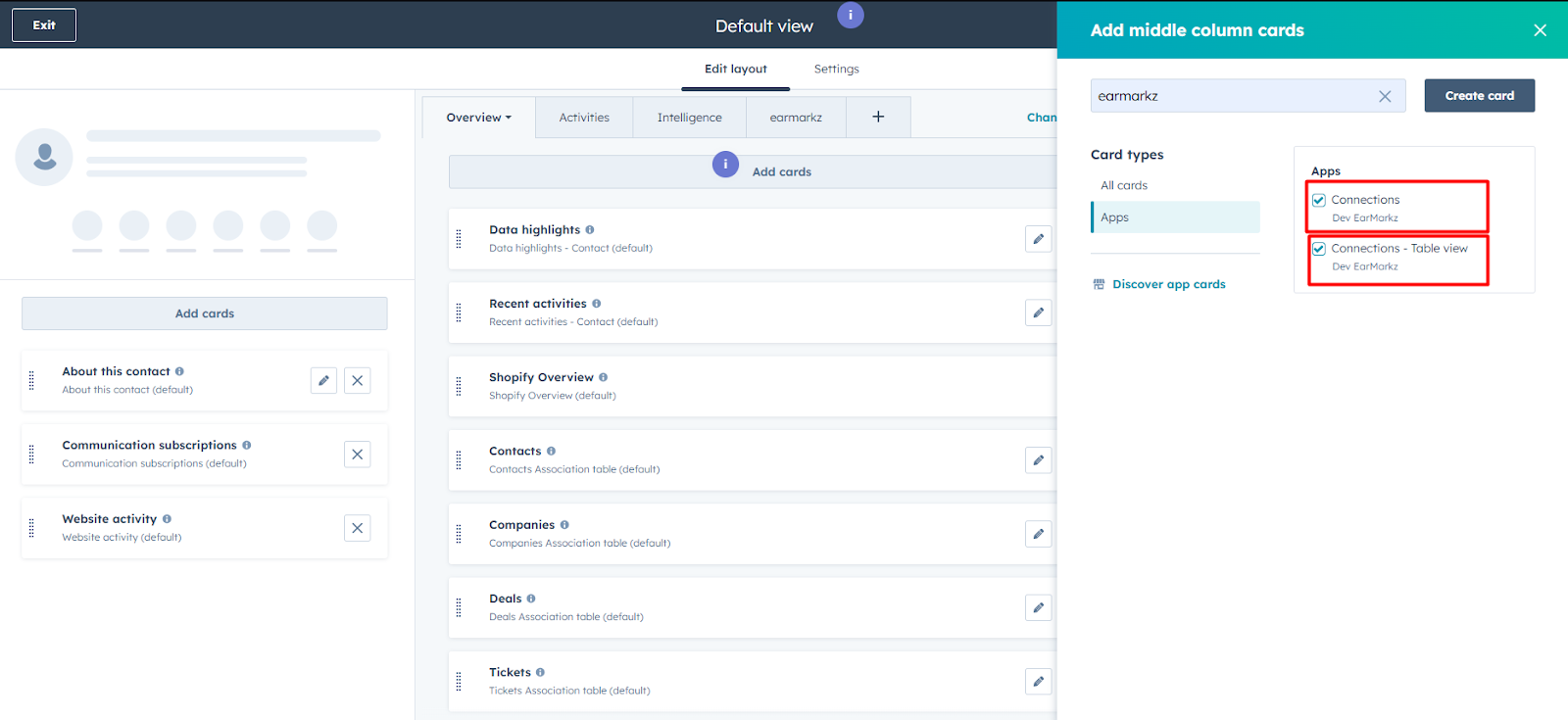
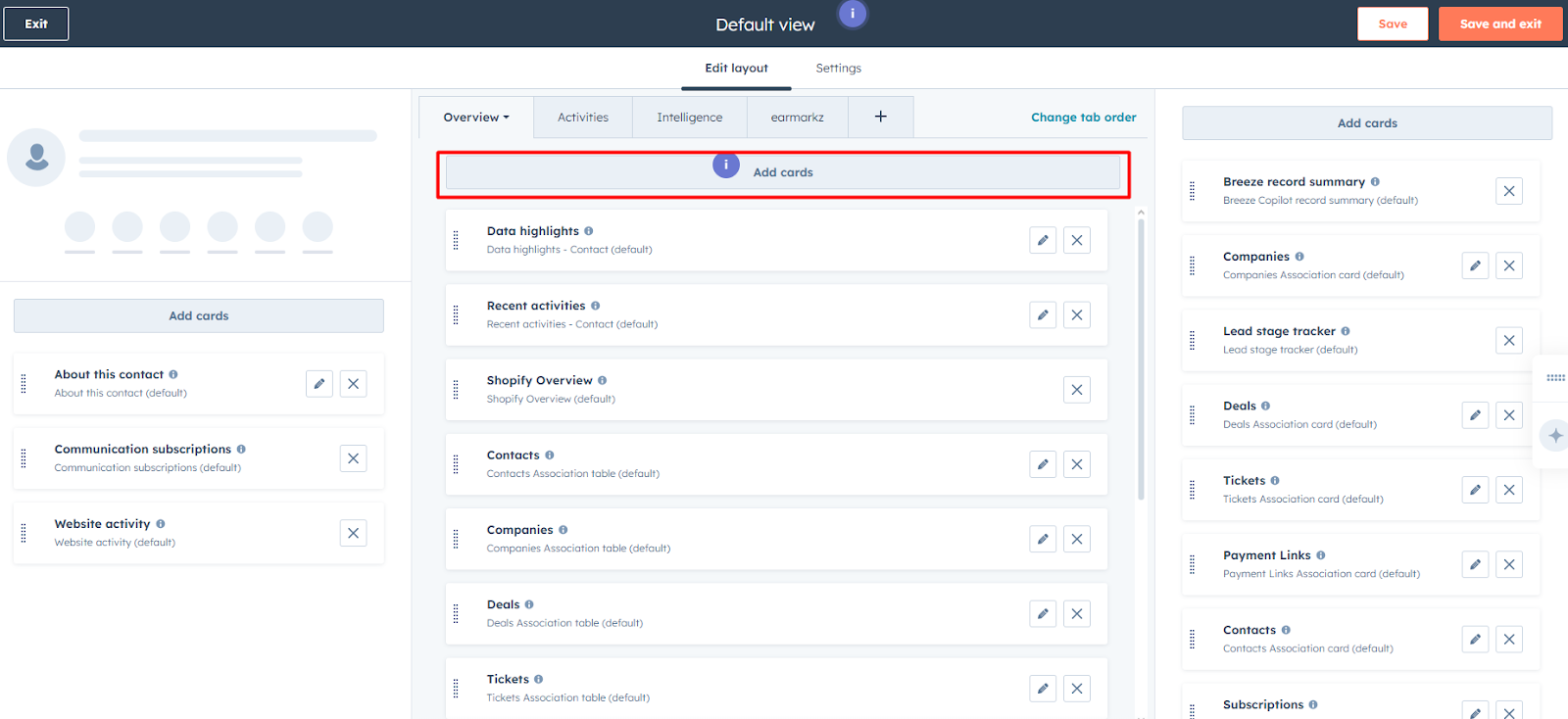
- Click Add cards.
- Locate and select the Earmarkz cards.
- By default, they appear at the bottom of the layout—drag and drop to reorder as desired.
- Click Save to apply your changes.
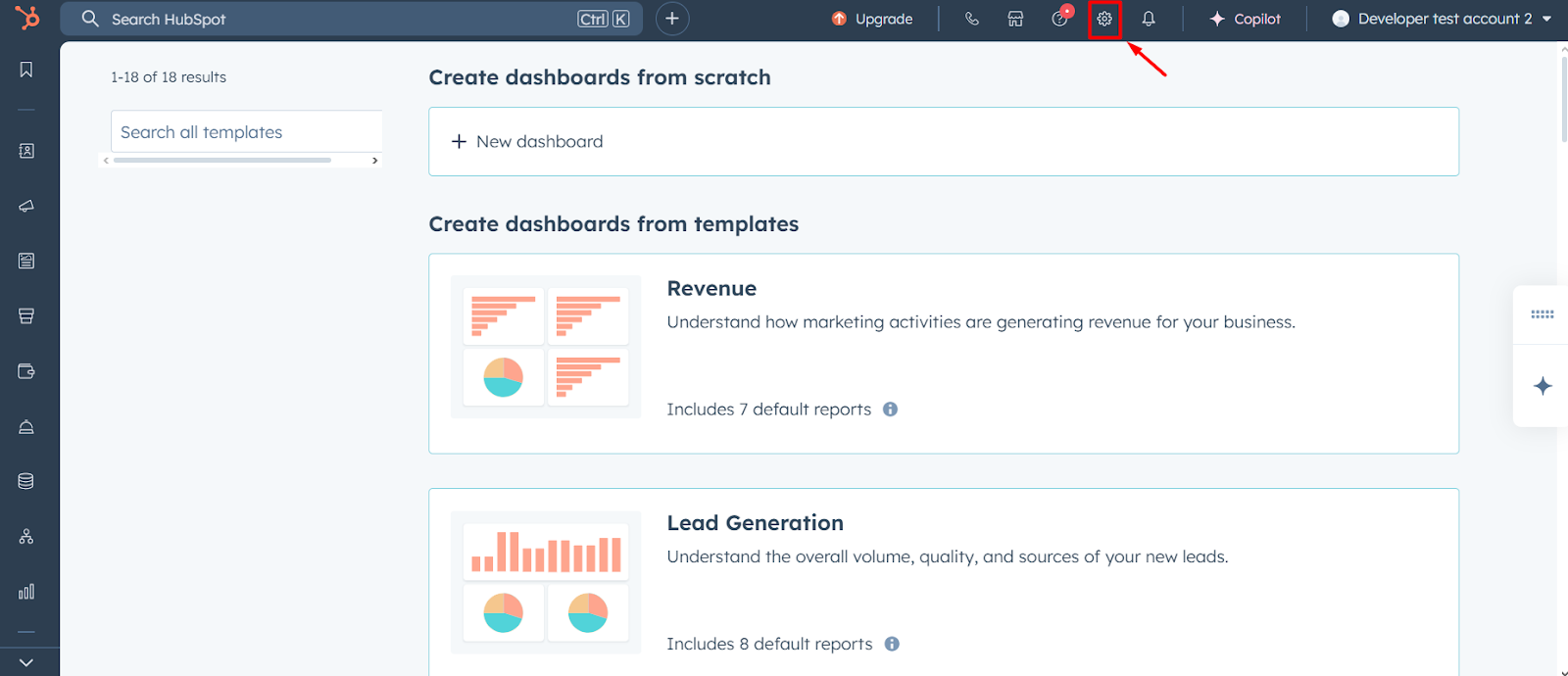
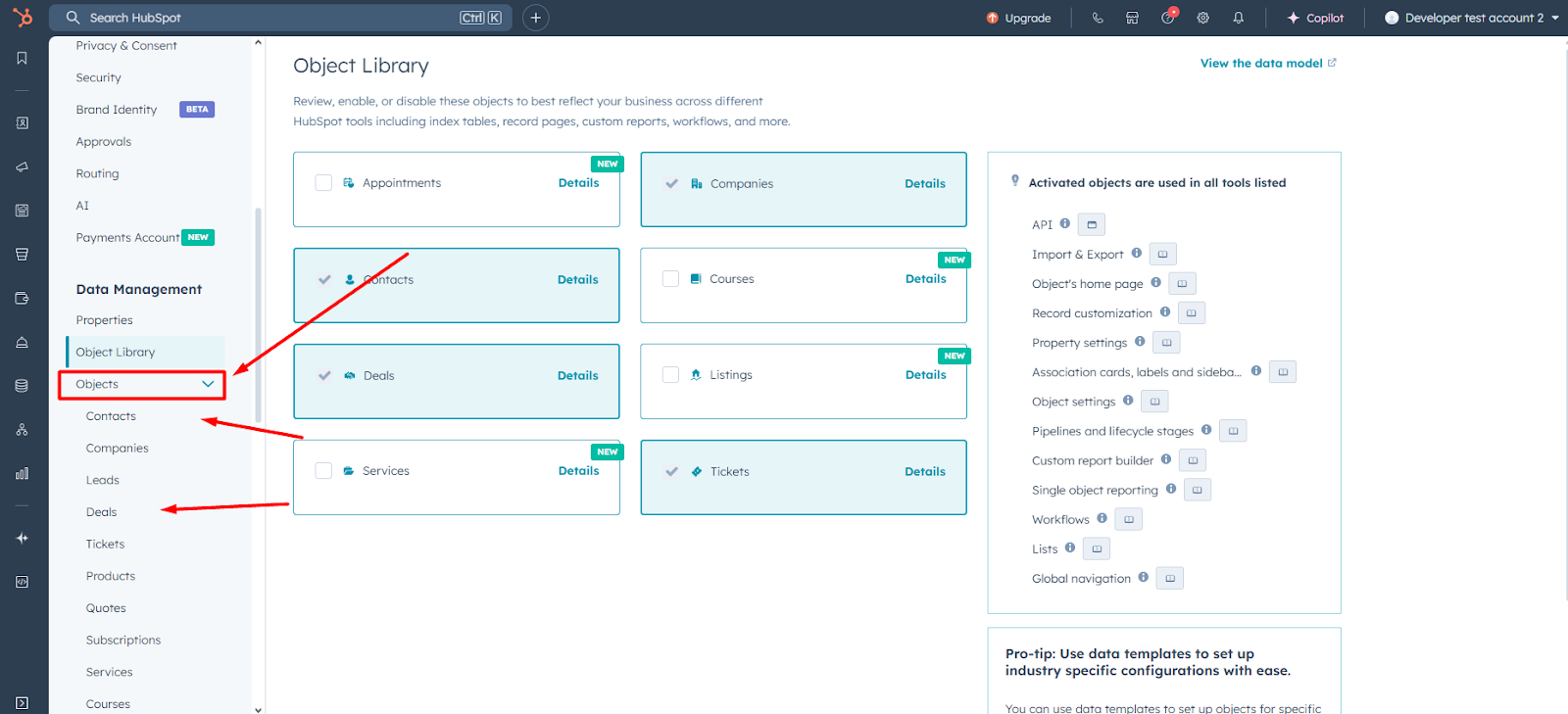
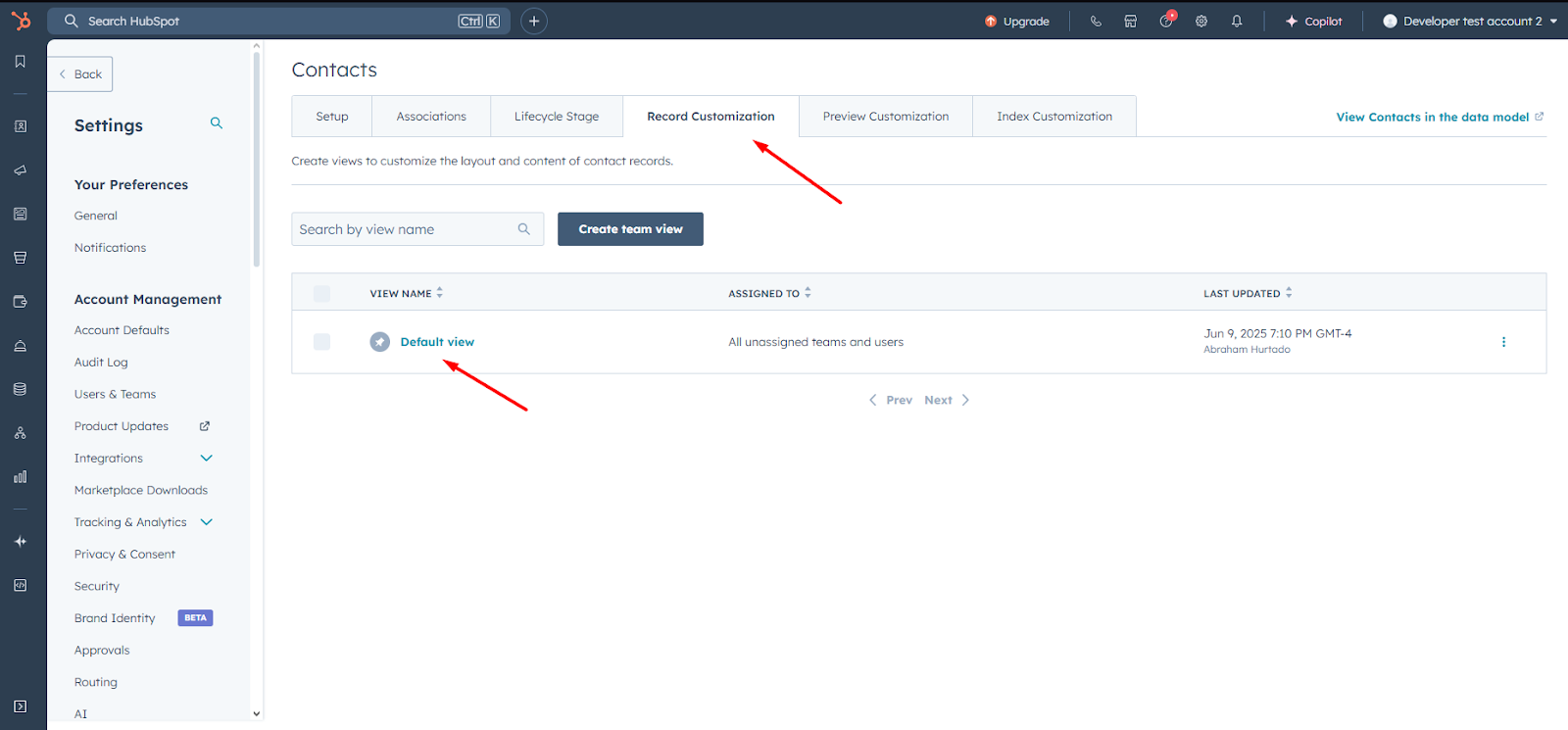
Using the Earmarkz Extension
- Open any Contact or Deal record in HubSpot.
- Scroll to the Earmarkz section(s) you added.
- From there you can:
- Link prospects or customers.
- Create new references.
- View mapped data from your Earmarkz account
Troubleshooting common problems
“Connection successful” does not appear
Possible Cause:
Invalid Earmarkz credentials
Recommended Action:
Verify email/password and retry the connection process
Earmarkz cards are not visible
Possible Cause:
Default view configuration not saved
Recommended Action:
Revisit step 4 and ensure you click Save
Insufficient HubSpot permissions
Possible Cause:
User lacks Admin role
Recommended Action:
Request Admin privileges from your HubSpot administrator
Troubleshooting
Support
if you encounter any issues during installation or setup, please contact our support team at hello@earmarkz.com or visit our Help Center at: https://www.earmarkz.com .